Roblox Keyboard Controls for Newbies: Your Essential Guide
This essential guide provides a comprehensive overview of Roblox keyboard controls for newcomers, covering fundamental movement, camera adjustments, chat functions, and game-specific interactions to help Australian players navigate and enjoy the platform effectively.
Welcome, fellow Aussie gamers! If you’ve just dipped your toes into the incredible universe of Roblox, you’re likely eager to explore, create, and connect. To truly unlock the full potential of this platform, mastering the Roblox keyboard controls is your first crucial step. This guide is designed specifically for newbies, offering a clear and straightforward path to understanding how to navigate and interact within Roblox’s diverse experiences.
Understanding the Basics: Movement and Camera
Navigating the vibrant worlds of Roblox begins with understanding fundamental movement and camera controls. These are the bedrock of your interaction, allowing you to explore vast landscapes, participate in minigames, and interact with other players. Getting these down pat will make your initial Roblox experiences far more enjoyable and less frustrating.
Your character’s movement: WASD and arrow keys
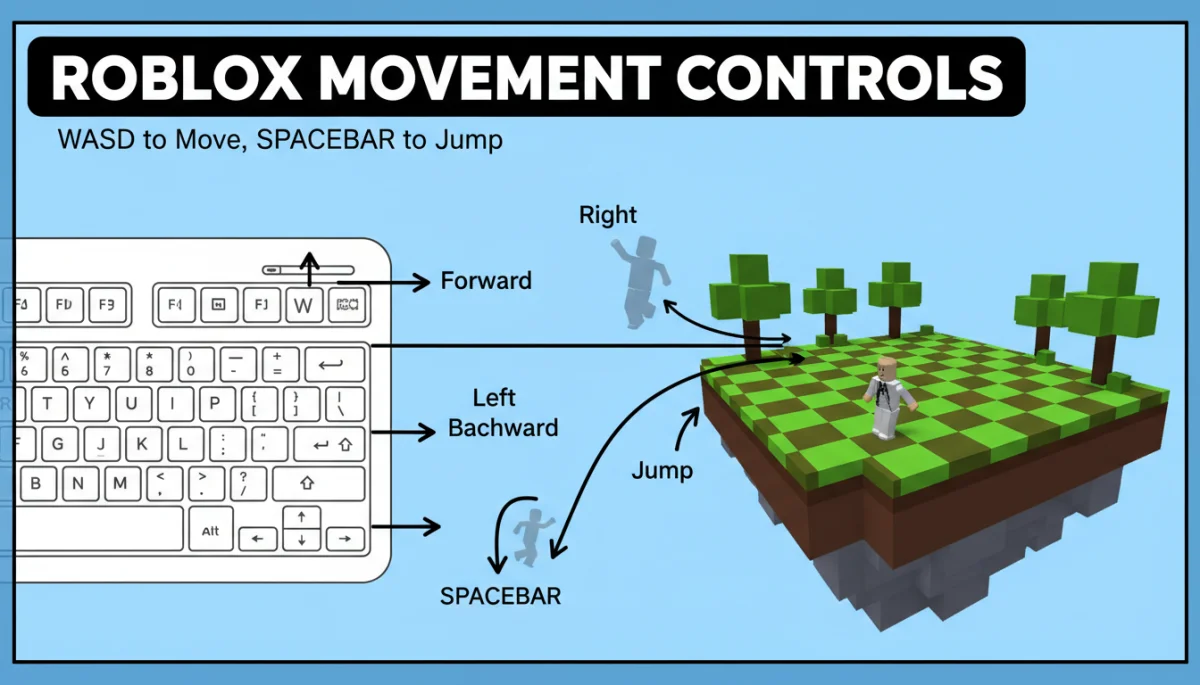
The most common way to move your character in Roblox is using the ‘WASD’ keys on your keyboard. This setup is standard across many PC games, so if you’ve played before, it will feel familiar. If not, don’t worry, it’s intuitive and easy to learn.
- W: Moves your character forward. Think of it as pushing your character into the screen.
- A: Strafe left. This moves your character sideways to the left without turning their body.
- S: Moves your character backward. Useful for backing away from danger or adjusting your position.
- D: Strafe right. Similar to ‘A’, this moves your character sideways to the right.
Alternatively, some players prefer using the arrow keys for movement. While less common in modern PC gaming, Roblox often supports this option, especially for those new to keyboard controls or who find it more comfortable. The up arrow moves forward, left arrow moves left, and so on.
Camera control for better views
Your camera perspective is vital for seeing what’s happening around you and making informed decisions. Roblox offers flexible camera controls that you can adjust to suit your gameplay style and the specific game you’re in.
- Right-click and drag: This is your primary method for rotating the camera. Hold down the right mouse button and move your mouse to look around your character.
- Scroll wheel: Use your mouse’s scroll wheel to zoom in and out. Zooming in can help you see details, while zooming out provides a wider perspective of your surroundings.
- Shift + P: Toggles ‘free camera’ mode in some games, allowing you to detach the camera from your character and explore independently. This is particularly useful for taking screenshots or scouting areas.
Mastering these basic movement and camera controls will significantly improve your initial adventures in Roblox. Practice them in a safe environment, perhaps a simple ‘obby’ (obstacle course) or a social hub, until they become second nature. This foundational knowledge will serve you well as you delve deeper into more complex experiences.
Interacting with the World: Jumping, Chat, and Menus
Beyond simply moving around, Roblox encourages dynamic interaction with its environments and other players. These interactions range from simple jumps to complex communication, all managed through your keyboard. Understanding these controls is key to fully engaging with the Roblox community and its myriad experiences.
Jumping and other physical actions
Jumping is a fundamental action in almost every Roblox game, crucial for overcoming obstacles, reaching higher platforms, or simply adding a bit of flair to your movement.
- Spacebar: Press the spacebar to make your character jump. A quick tap results in a small hop, while holding it down might lead to a higher jump in some games, depending on the game’s physics.
While jumping is universal, other physical actions might be game-specific. For instance, in some games, ‘E’ might be used to interact with objects, ‘F’ for fighting, or ‘G’ for gripping items. Always check the game’s specific instructions or UI for these unique controls.
Communication: the chat window
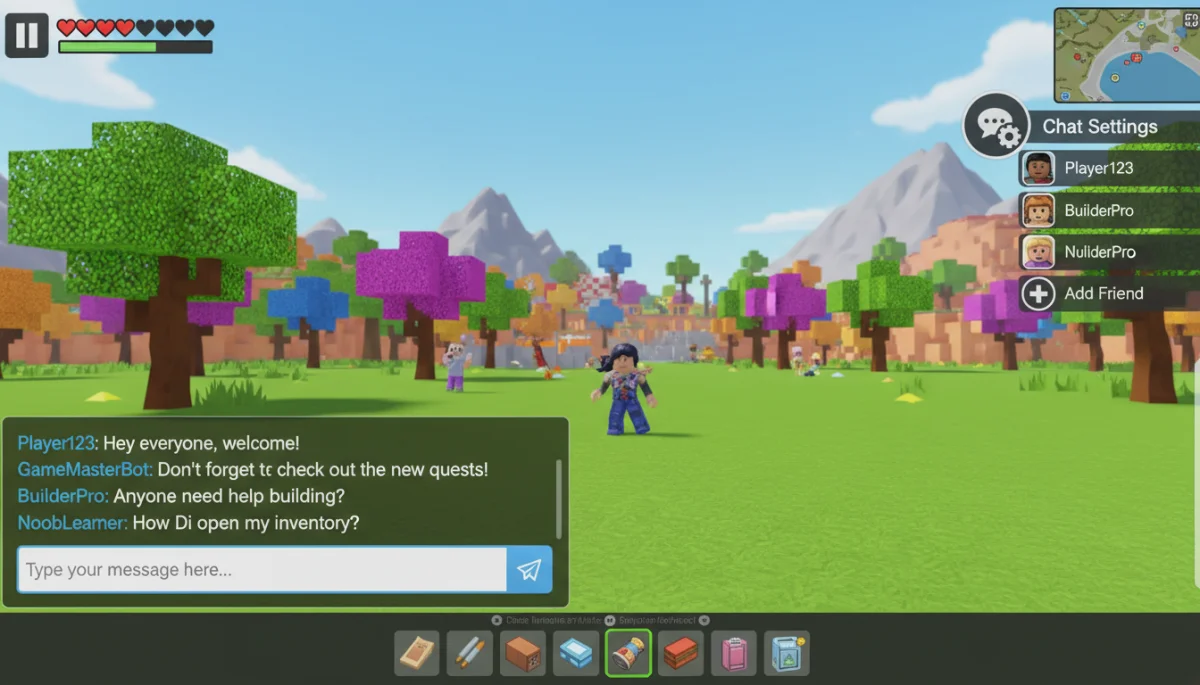
Roblox is a highly social platform, and communicating with other players is a core part of the experience. The chat window is your main tool for this, allowing you to send messages, ask questions, and make new friends.
- /: Press the forward slash key to open the chat window. Once open, you can type your message.
- Enter: After typing your message, press Enter to send it.
- Shift + 7 (or ‘): In some games, you might need to use a different key to open chat, or a specific key for private messages. However, ‘/’ is the most common.
Remember to always be polite and follow Roblox’s community guidelines when chatting. Good communication enhances everyone’s experience, fostering a friendly and welcoming environment for all Aussie players.
Accessing menus and settings
The Roblox menu provides access to various settings, player lists, and options to leave or reset your character. Knowing how to quickly access this menu is essential for managing your game session.
- Esc: The Escape key is your go-to for opening the Roblox menu. From here, you can adjust graphics, audio, control settings, or exit the game.
These interaction controls, from jumping over obstacles to chatting with mates and adjusting your settings, are crucial for a well-rounded Roblox experience. They allow you to not just observe but actively participate and shape your journey within the platform.
Advanced Navigation: Sprinting, Crouching, and Special Actions
As you become more comfortable with the basic Roblox keyboard controls, you’ll find that many games offer more advanced movement options and special actions. These can provide tactical advantages, allow access to hidden areas, or simply add more depth to your gameplay. Understanding these can elevate your Roblox experience from novice to seasoned explorer.
Sprinting for faster movement
In many action-oriented or exploration-heavy Roblox games, the ability to sprint is invaluable. It allows you to cover ground more quickly, escape from pursuing enemies, or rush to an objective.
- Left Shift: Typically, holding down the Left Shift key while moving (using WASD or arrow keys) will make your character sprint. The visual effect might vary between games, but you’ll notice a significant increase in speed.
Not all games implement sprinting, and some might assign it to a different key. Always check the in-game tutorial or settings menu if you’re unsure. However, Left Shift is the most common default for this action.
Crouching and stealth
For games that involve stealth, puzzle-solving, or navigating tight spaces, crouching becomes an essential control. It reduces your character’s height and, in some cases, can make you less visible to enemies or allow you to squeeze through small openings.
- Left Ctrl: The Left Control key is frequently used to make your character crouch. Holding it down will keep you crouched, and releasing it will make you stand up. In some games, it might be a toggle, meaning one press to crouch and another to stand.
Crouching can also be combined with movement for a ‘stealth walk,’ which is slower but quieter in games where sound plays a role. Experiment with this in games that feature stealth mechanics to see its full potential.
Game-specific special actions
Roblox’s strength lies in its incredible diversity of games, and with that diversity comes a wide array of game-specific controls. These special actions are unique to the experience you’re playing and can range from casting spells to building structures or driving vehicles.
- Number keys (1-9): Often used to select tools, weapons, or abilities from your inventory. Pressing ‘1’ might equip a sword, ‘2’ a healing potion, and so on.
- ‘E’ or ‘F’: Common interaction keys for picking up items, opening doors, talking to NPCs (non-player characters), or activating machinery.
- ‘R’ or ‘T’: Sometimes used for reloading weapons, transforming, or activating unique character abilities.
The best way to discover these controls is by paying attention to in-game tutorials, checking the game’s description, or looking for a ‘help’ or ‘controls’ section within the game’s menu. Developers usually provide clear instructions for their unique mechanics.
By exploring these advanced navigation and special action controls, you’ll unlock new dimensions of gameplay within Roblox. Don’t be afraid to experiment and adapt to the specific demands of each game, as this flexibility is what makes Roblox so engaging.
Optimising Your Setup: Customisation and Accessibility
While Roblox provides default keyboard controls, the platform also offers various options for customisation and accessibility. Tailoring your setup can significantly enhance your comfort, reaction time, and overall enjoyment, especially for Australian players who might have specific preferences or accessibility needs. A personalised configuration can turn a good gaming session into a great one.
Customising your keybinds
Not everyone finds the default WASD setup ideal, or you might prefer certain actions on different keys. Roblox, and many individual games within it, often allow you to rebind keys.
- Roblox Settings Menu: Accessible by pressing ‘Esc’, this menu sometimes has a ‘Controls’ tab where you can view and modify global keybinds, though these are more limited to core Roblox functions.
- In-Game Settings: Many specific Roblox games (experiences) include their own settings menus that allow for extensive key remapping. Look for options like ‘Controls’, ‘Keybinds’, or ‘Settings’ within the game’s UI.
Experiment with different key placements to find what feels most natural and efficient for you. For example, some players prefer ‘C’ for crouch instead of ‘Ctrl’, or ‘Q’ and ‘E’ for strafing instead of ‘A’ and ‘D’.
Accessibility features for all players
Roblox is committed to making its platform accessible to a wide audience. This includes features that can assist players with different needs or preferences.
- Mouse sensitivity: Adjusting mouse sensitivity in the Roblox settings can make camera control smoother or more precise, depending on your preference.
- Inverted camera: Some players prefer an inverted camera (moving the mouse up looks down, and vice versa). This option is usually available in the main Roblox settings.
- Controller support: While this guide focuses on keyboard controls, it’s worth noting that Roblox also supports game controllers, which can be an alternative for some players.
Checking these accessibility options can significantly improve your gameplay experience, ensuring that Roblox is enjoyable for everyone, regardless of their input method preferences. Don’t hesitate to dive into the settings and tweak them until they feel just right.
Taking the time to optimise your keyboard controls and explore accessibility features is an investment in your long-term enjoyment of Roblox. A comfortable and efficient setup allows you to focus more on the fun and less on wrestling with awkward controls.
Troubleshooting Common Control Issues
Even with the most straightforward guides, new players might occasionally encounter issues with their Roblox keyboard controls. These problems can range from unresponsive keys to unexpected camera behaviour. Knowing how to troubleshoot these common issues can save you a lot of frustration and get you back into the game faster.
Unresponsive keys or character not moving
One of the most common problems is when your character simply won’t respond to your key presses. This can be caused by several factors.
- Check your keyboard connection: Ensure your keyboard is properly plugged into your computer. If it’s wireless, check the battery and connection.
- Focus on the Roblox window: Sometimes, your computer might lose focus on the Roblox application, meaning your key presses are going to another program. Click on the Roblox game window to ensure it’s active.
- Restart Roblox: A quick restart of the Roblox application can often resolve temporary glitches that might be affecting controls.
- Test your keyboard: Use a simple text editor (like Notepad) to ensure your keys are physically working. If they don’t work there, it might be a hardware issue.
If these basic steps don’t resolve the issue, consider if any background applications are interfering with your keyboard input, such as other gaming overlays or accessibility software.
Camera acting strangely or spinning
A disoriented or constantly spinning camera can be very frustrating and make games unplayable. This issue often points to mouse or controller interference.
- Disconnect other input devices: If you have a game controller, joystick, or even another mouse plugged in, try disconnecting them. Sometimes, these devices can send unintended input that conflicts with your primary controls.
- Check mouse surface: Ensure your mouse is on a clean, flat surface. Dust or debris can interfere with optical mouse sensors, causing erratic movement.
- Adjust mouse sensitivity: In some rare cases, extremely high mouse sensitivity in Roblox or your operating system can make the camera overly twitchy. Try lowering it in the Roblox settings or your computer’s mouse settings.
If the problem persists, try restarting your computer. A fresh boot can often clear up underlying software conflicts that might be affecting your input devices.
Game-specific control issues
Sometimes, controls might work fine in the Roblox lobby but fail in a specific game. This usually indicates a problem with that particular game’s scripting or settings.
- Check in-game help/tutorial: The game developer might have specific instructions or known issues regarding controls.
- Rejoin the game: Sometimes, simply leaving and rejoining the specific Roblox experience can fix temporary loading errors that affect controls.
- Contact the game developer: If the issue is persistent and only happens in one game, it might be a bug. Consider reaching out to the game’s developer through their community channels.
By systematically troubleshooting these common control issues, you can quickly identify and resolve problems, ensuring a smoother and more enjoyable Roblox experience. Don’t let minor technical hiccups deter you from exploring all that Roblox has to offer.
Mastering Game-Specific Controls and Hotkeys
While the core Roblox keyboard controls provide a universal foundation, truly excelling in any given Roblox experience often requires mastering its unique set of game-specific controls and hotkeys. Each game, or ‘experience’ as they’re called on Roblox, is a world unto itself, often with bespoke mechanics that demand a tailored approach to input. For Australian players looking to dominate their favourite games, understanding these nuances is paramount.
Understanding unique game mechanics
Roblox games span an incredible variety of genres, from intricate role-playing games and fast-paced action titles to complex simulation and building experiences. Each genre, and often each individual game, introduces controls that are specific to its gameplay loop.
- Inventory and item usage: In many RPGs or survival games, the number keys (1-9) are crucial for quickly switching between weapons, tools, or consumable items. Learning which item is assigned to which slot can be a game-changer in combat or resource gathering.
- Building and crafting: Games like ‘MeepCity’ or ‘Adopt Me!‘ involve building or decorating. These often use keys like ‘R’ for rotation, ‘T’ for toggling snap, or ‘F’ for flipping objects. Precision is key here.
- Vehicle controls: Driving or flying games will have their own set of controls, often using WASD for movement but adding ‘C’ for changing camera view, ‘Shift’ for boost, or ‘Space’ for handbrake/jump.
The best way to learn these is through the in-game tutorials, which developers usually provide. If a game lacks a tutorial, look for a ‘help’ or ‘controls’ section in its main menu, or even check the game’s description page on the Roblox website.
Leveraging hotkeys for efficiency
Hotkeys are shortcuts that allow you to perform actions quickly without navigating through menus. In fast-paced games, using hotkeys can significantly improve your reaction time and overall efficiency.
- Emotes and expressions: Many games have dedicated hotkeys for emotes (e.g., ‘/e dance’, ‘/e wave’), allowing you to express yourself without opening the chat window manually.
- Quick access to abilities: In games with multiple character abilities, developers often assign hotkeys (e.g., ‘Q’, ‘E’, ‘R’, ‘F’) to these powers, enabling rapid deployment during critical moments.
- Map or scoreboard: Common hotkeys like ‘M’ for the map or ‘Tab’ for the scoreboard can provide vital information during gameplay without pausing the action.
Becoming proficient with game-specific hotkeys requires practice and memorisation, but the payoff in improved gameplay and responsiveness is well worth the effort. It allows you to focus on strategy and enjoyment rather than fumbling through menus.
Practicing and adapting to new games
Every new Roblox experience presents a learning curve for its controls. The key is to be patient and adaptive. Start by familiarising yourself with the basic movement and camera, then gradually introduce the game-specific mechanics.
- Start in a safe area: If a game has a tutorial zone or a non-combat area, use it to practice new controls without pressure.
- Observe other players: Watch how experienced players navigate and interact. You might pick up on useful hotkeys or movement techniques.
- Don’t be afraid to ask: The Roblox community is generally helpful. If you’re struggling with a control, ask in the game chat.
By embracing the unique control schemes of each Roblox game and actively seeking to master its hotkeys, you’ll find yourself not just playing, but truly thriving in the incredibly diverse worlds Roblox has to offer. This adaptability is a hallmark of a skilled Roblox player.
Beyond the Basics: Advanced Tips and Tricks for Experienced Newbies
Once you’ve grasped the fundamental and game-specific Roblox keyboard controls, it’s time to elevate your gameplay with some advanced tips and tricks. These strategies go beyond mere button presses, focusing on efficiency, situational awareness, and leveraging the platform’s features to your advantage. For Aussie players looking to truly stand out, these insights can make a significant difference.
Utilising shift lock for precision movement
Shift Lock is a game-changing feature for many Roblox experiences, offering a more precise and intuitive control scheme, especially in combat or intricate platforming.
- Shift Lock (Shift + P then Shift): While typically ‘Shift + P’ toggles the free camera, in many games, simply pressing and holding the ‘Shift’ key will activate ‘Shift Lock’. When active, your camera becomes fixed behind your character, and your character will always move in the direction you’re looking with your mouse.
This is incredibly useful for: aiming ranged weapons, precise platforming jumps, and generally maintaining a consistent perspective in fast-paced scenarios. It takes some getting used to, but once mastered, it significantly improves control.
Keyboard shortcuts for quick actions
Beyond in-game hotkeys, Roblox itself has several built-in keyboard shortcuts that can streamline your experience.
- F5: Resets your character. This is useful if you get stuck in the environment or want to quickly respawn.
- Shift + F5: Toggles the display of your ping and FPS (frames per second). Essential for diagnosing performance issues.
- Ctrl + Shift + C: Opens the developer console, which can sometimes provide useful error messages if you’re experiencing technical difficulties.
While not every shortcut is relevant to daily gameplay, knowing these can help you troubleshoot and manage your game sessions more effectively.
Combining actions for seamless gameplay
True mastery comes from seamlessly combining different control inputs to perform complex actions. This is where the ‘flow’ of gameplay truly emerges.
- Jump-Sprinting: In games where it’s effective, combining jumps with sprinting can cover ground even faster or help you navigate tricky terrain.
- Crouch-Shooting: In FPS games, crouching while shooting can sometimes improve accuracy by reducing recoil or making you a smaller target.
- Camera-Movement Synergy: Actively using your right-click camera control in conjunction with WASD movement allows you to look around while moving, providing better situational awareness.
Practising these combinations in various game environments will help you develop muscle memory and react more instinctively. The key is to experiment and find what works best for each specific game and your personal play style.
By integrating these advanced tips and tricks into your Roblox repertoire, you’ll not only navigate the platform with greater proficiency but also unlock new levels of engagement and enjoyment. From precise movements with Shift Lock to efficient hotkey usage, these strategies will set you apart as a truly skilled player.
| Key Aspect | Brief Description |
|---|---|
| Basic Movement | WASD or arrow keys for character movement; Spacebar for jumping. Essential for navigation. |
| Camera Control | Right-click and drag to rotate, scroll wheel to zoom. Critical for situational awareness. |
| Interaction & Chat | ‘/’ to open chat, Enter to send; ‘Esc’ for Roblox menu. Key for communication and settings. |
| Advanced Actions | Left Shift for sprint, Left Ctrl for crouch. Game-specific keys for unique actions. |
Frequently Asked Questions About Roblox Keyboard Controls
The essential Roblox keyboard controls for movement are ‘W’ to move forward, ‘A’ to strafe left, ‘S’ to move backward, and ‘D’ to strafe right. The ‘Spacebar’ is used for jumping. These foundational controls allow players to navigate the diverse environments within Roblox experiences effectively and are consistent across most games on the platform.
While the mouse is primarily used for camera control (right-click and drag to rotate, scroll wheel to zoom), you can also toggle ‘Shift Lock’ by pressing ‘Shift’ (in most games) to fix the camera behind your character, allowing you to control camera direction with your mouse movements while your character faces the same way. This offers more precise movement and aiming.
To open the chat window in Roblox, press the forward slash key (/). Once the chat window appears, you can type your message. After composing your message, simply press the ‘Enter’ key to send it to other players in the game. This allows for real-time communication and interaction within the Roblox community.
Yes, to a certain extent. The main Roblox application offers some basic control adjustments through the ‘Esc’ menu. However, many individual Roblox experiences (games) provide their own in-game settings where you can customise keybinds for specific actions within that particular game. This allows players to tailor controls to their personal preferences for a more comfortable experience.
If your Roblox keyboard controls aren’t working, first ensure your keyboard is properly connected and the Roblox game window is in focus. Try restarting the Roblox application. If the issue persists, check if other input devices (like gamepads) are causing interference, or test your keyboard in a different application to rule out hardware problems. Sometimes, restarting your computer can also resolve the issue.
Conclusion
Mastering Roblox keyboard controls is an essential step for any new player looking to fully immerse themselves in the platform’s vast and diverse experiences. From basic movement and camera adjustments to advanced game-specific actions and troubleshooting common issues, this guide has equipped you with the knowledge needed to navigate Roblox with confidence. By understanding and practising these controls, you’re not just playing; you’re actively engaging with the world, communicating with fellow Aussie players, and unlocking the full potential of your Roblox journey. Keep exploring, keep learning, and most importantly, keep having fun!
